Computer Workstation Design: A Practical Ergonomic Self-Assessment Guide
Computer Workstation Design
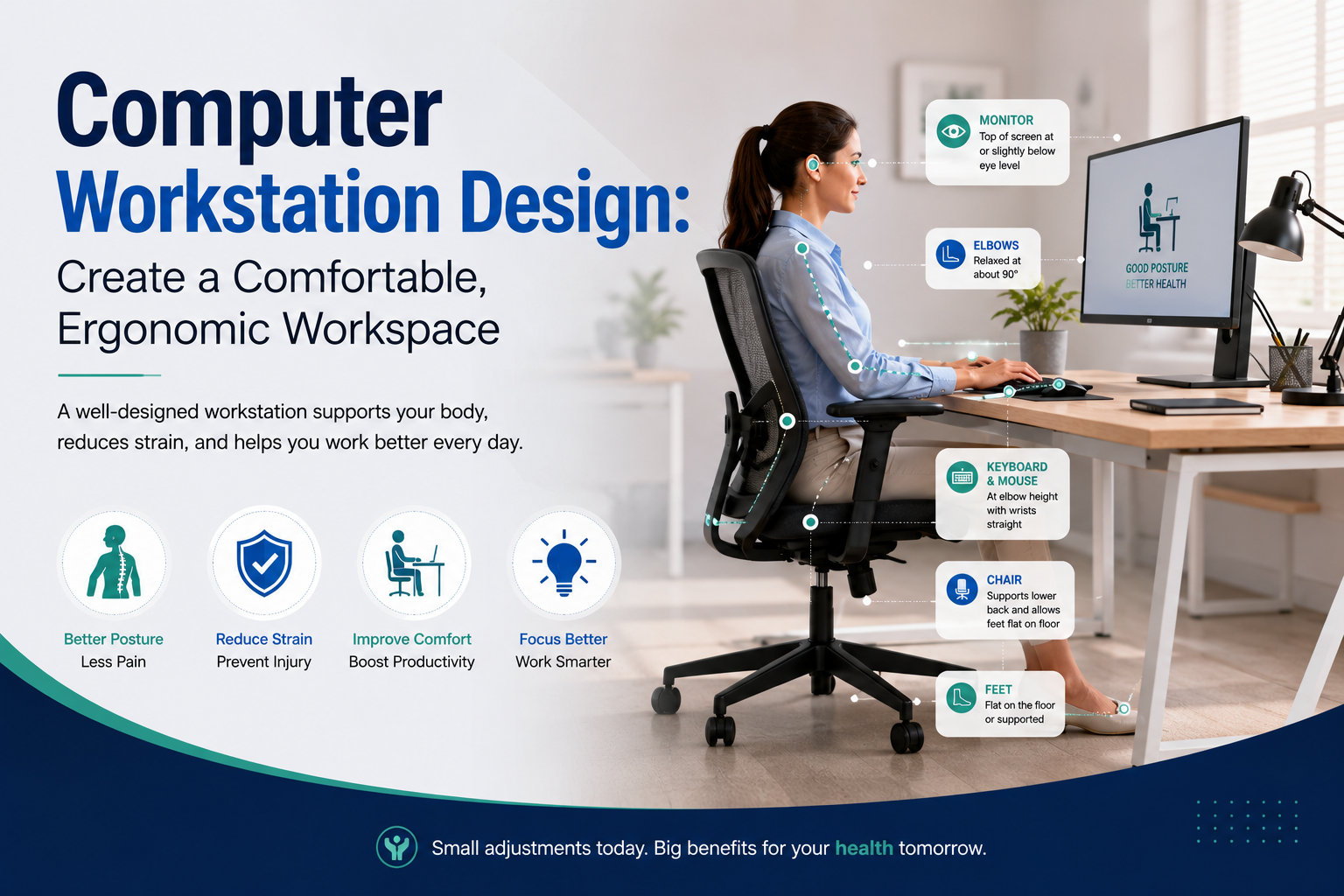
A well-designed computer workstation can make a significant difference to your comfort, posture, and ability to work efficiently. An unsuitable chair, poorly positioned monitor, or incorrectly adjusted keyboard and mouse can contribute to unnecessary strain during prolonged computer use.
Ergonomic workstation design focuses on arranging your chair, desk, monitor, keyboard, mouse, and other frequently used equipment so that your body can remain in a comfortable and supported position.
A simple workstation self-assessment can help identify areas that may need adjustment.
Why Is an Ergonomic Workstation Important?
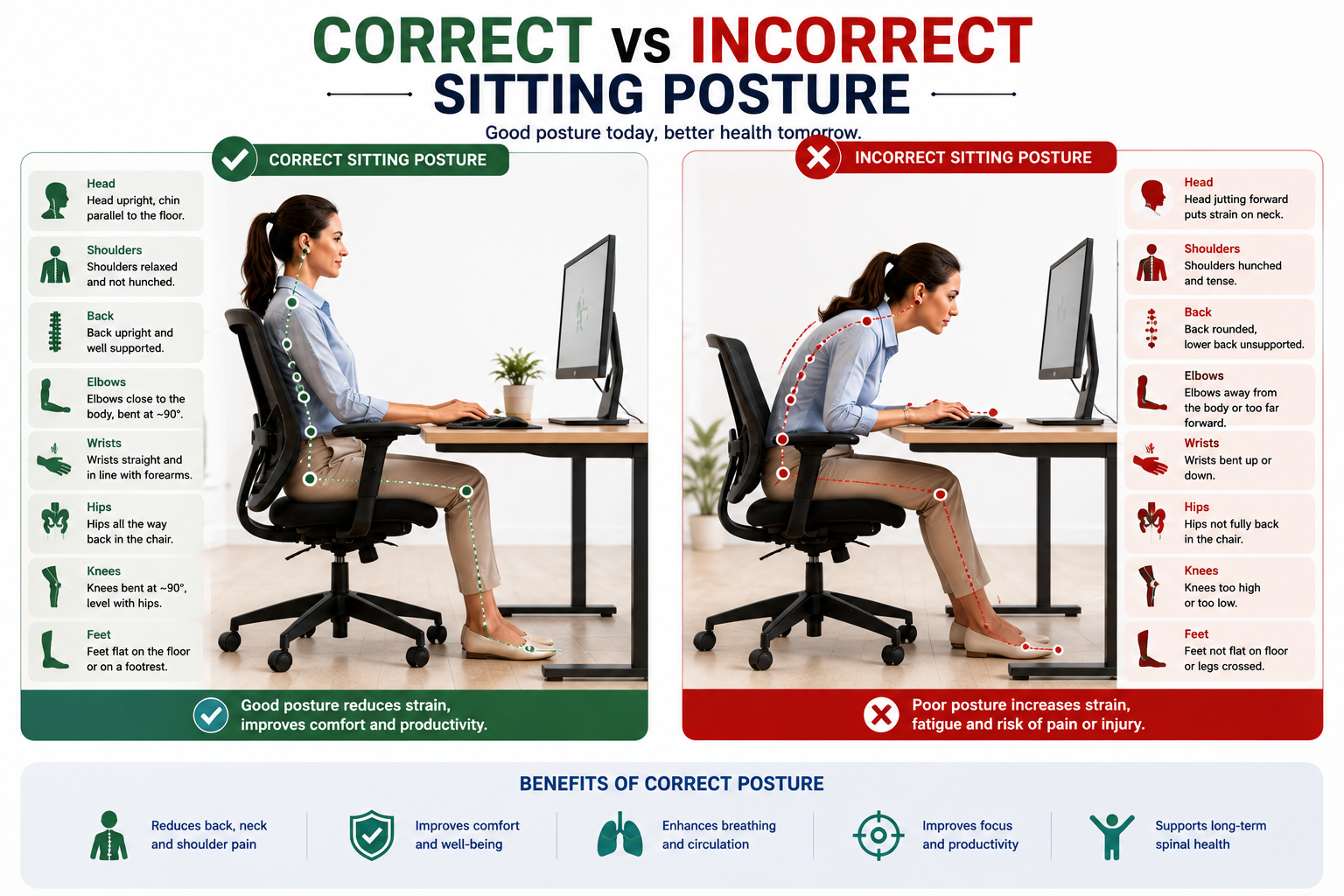
Most computer-based work involves maintaining similar positions for extended periods. If your workstation does not fit your body properly, you may experience unnecessary stress around the neck, shoulders, back, wrists, and arms.
An ergonomic workstation should allow you to:
Maintain a comfortable posture
Keep your back properly supported
Position your arms and wrists naturally
View the monitor without excessive neck movement
Keep frequently used items within easy reach
Move comfortably throughout the working day
Computer Workstation Self-Assessment
Use the following checklist to review your workstation and identify possible improvements.
1. Is Your Chair Properly Adjustable?
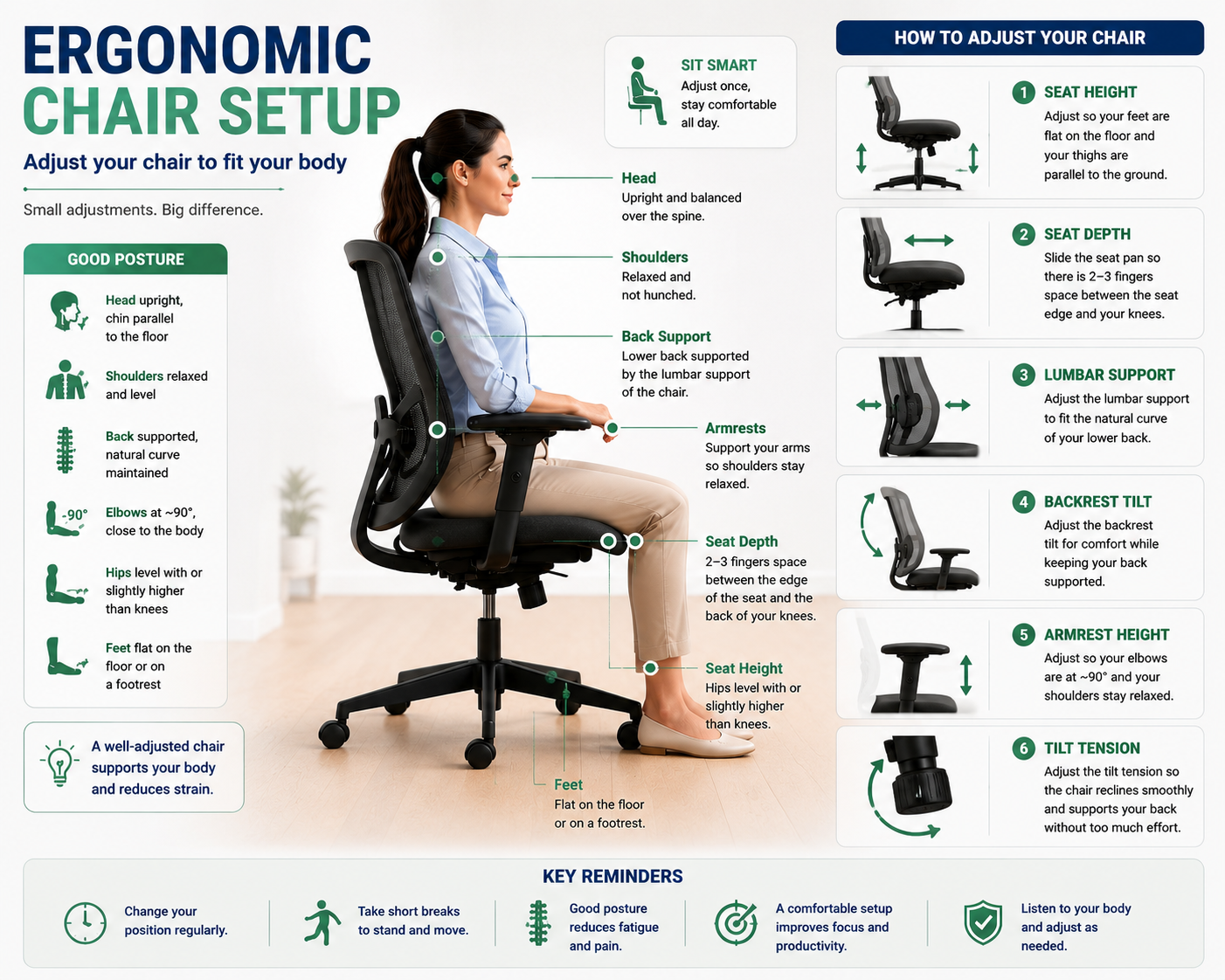
Your chair should allow you to adjust the seat height and backrest so that you can maintain a comfortable working posture.
If not:
Consider a fully adjustable ergonomic chair.
Adjust the chair according to your body size and workstation height.
2. Are Your Feet Fully Supported?
When seated, your feet should be comfortably supported rather than hanging unsupported.
Possible adjustments:
Lower the chair if appropriate.
Use a stable footrest if your feet cannot comfortably reach the floor.
3. Does Your Chair Support Your Lower Back?
Your lower back should receive adequate support while you work.
Possible adjustments:
Adjust the chair's backrest.
Use an appropriate lumbar support.
Consider a chair with better lumbar support if necessary.
4. Is the Seat Comfortable Behind Your Knees?
When your back is supported, the front edge of the seat should not create uncomfortable pressure behind your knees.
Possible adjustments:
Adjust the seat depth if available.
Reposition the backrest.
Consider additional lumbar support if it helps you sit comfortably without excessive pressure.
5. Do the Armrests Allow You to Get Close to the Desk?
Armrests should support your arms without preventing you from moving close enough to your workstation.
Possible adjustments:
Adjust the armrests.
Remove them if they interfere with your working position.
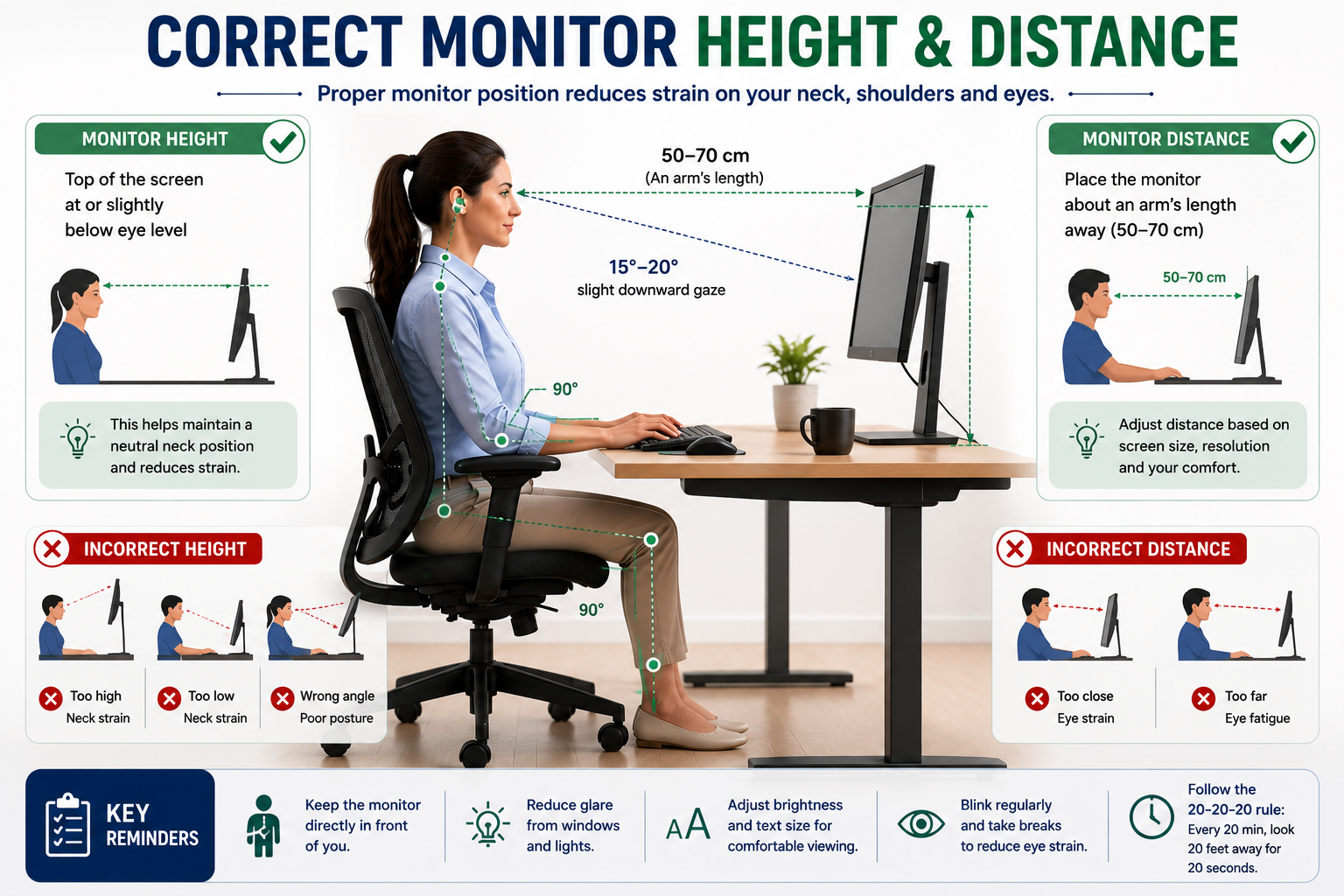
6. Are Your Keyboard, Mouse, and Work Surface at a Comfortable Height?
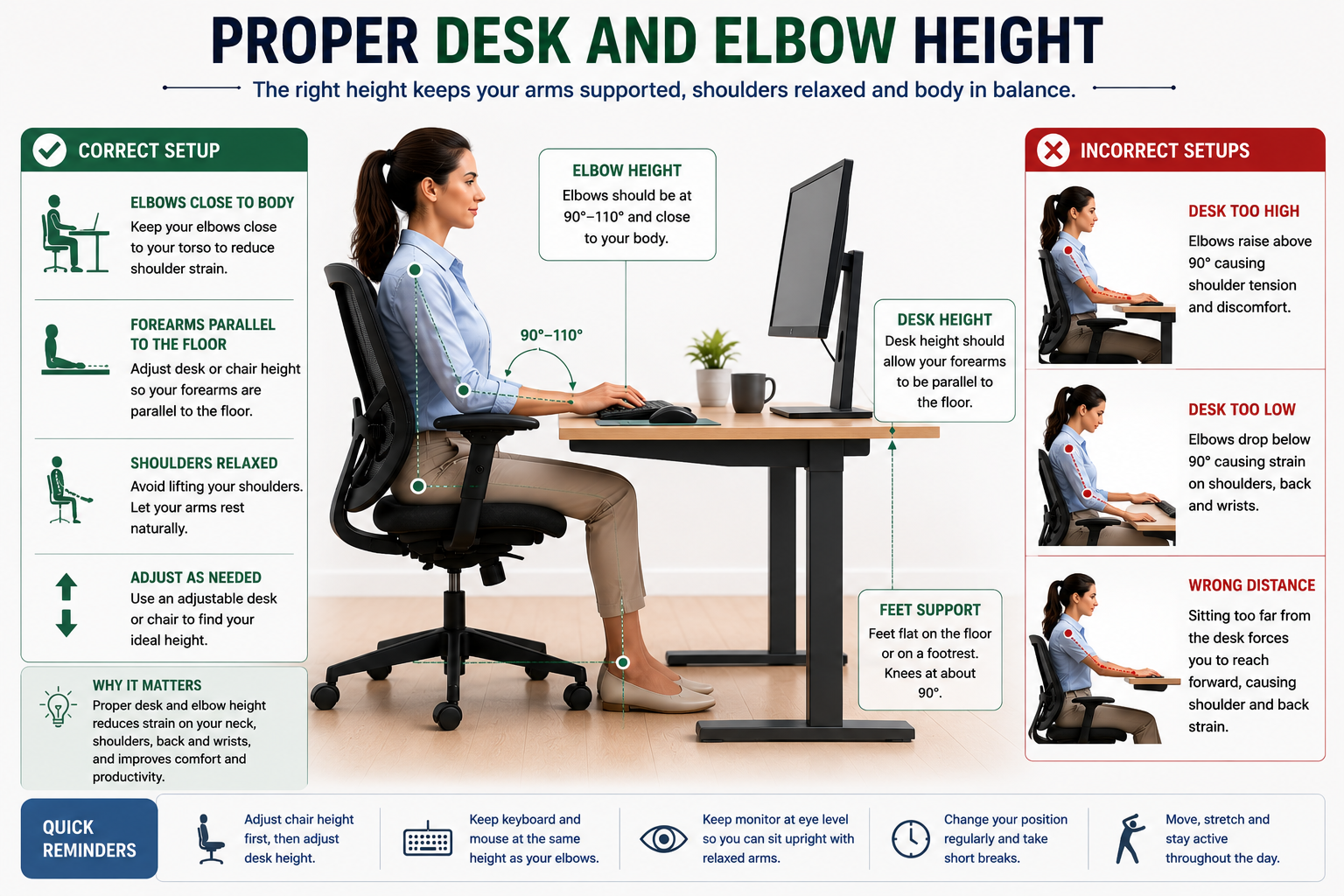
Your keyboard and mouse should generally be positioned so that your shoulders remain relaxed and your elbows stay close to your body.
Your forearms should be comfortable and your wrists should not need to bend excessively.
Possible adjustments:
Raise or lower the workstation.
Adjust the chair height.
Use an adjustable keyboard tray if required.
7. Are Frequently Used Items Within Easy Reach?
Items that you use regularly should be positioned within your normal working area.
This reduces unnecessary reaching, twisting, or repeated shoulder movement.
Possible adjustment:
Rearrange your workstation so frequently used items are easy to access.
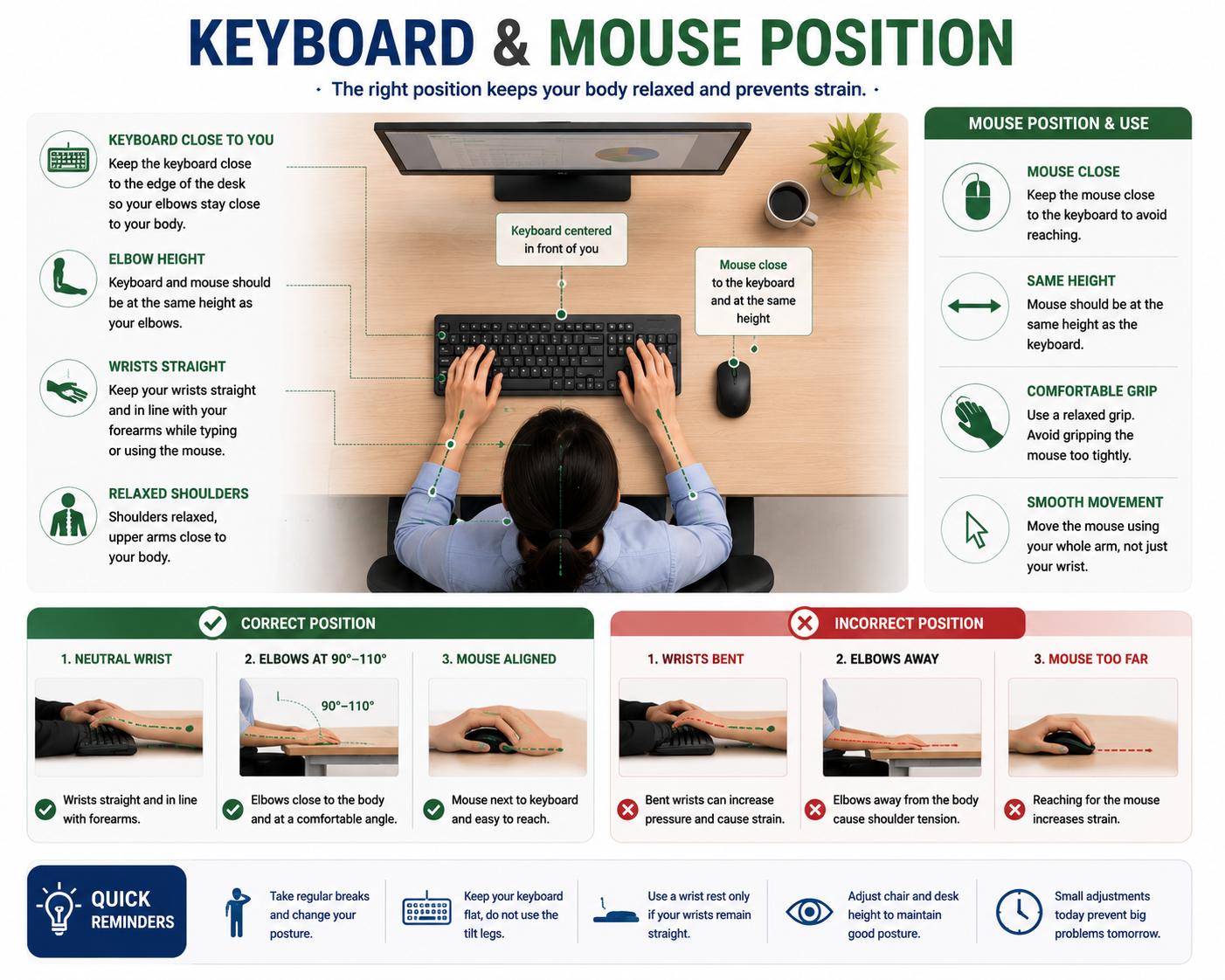
8. Is Your Keyboard Positioned Correctly?
The keyboard should be positioned at a comfortable distance from the front edge of the desk.
There should be enough space to allow your hands and wrists to rest comfortably without forcing your shoulders forward.
Possible adjustment:
Move the keyboard closer or farther away until you find a comfortable position.
9. Are Your Wrists Straight While Typing and Using the Mouse?
When using the keyboard and mouse, your wrists should remain as neutral as possible and your upper arms should stay relaxed.
Avoid excessive upward or downward bending of the wrists.
A keyboard that is unnecessarily tilted may increase wrist extension and create an uncomfortable working position.
Possible adjustments:
Recheck your sitting posture.
Adjust chair and desk height.
Check the height and position of your keyboard and mouse.
Keep the keyboard in a comfortable, relatively flat position.
10. Is Your Mouse Close to the Keyboard?
Your mouse should ideally be positioned at a similar height to the keyboard and close enough that you do not have to repeatedly reach outward.
Possible adjustment:
Move the mouse closer to the keyboard.
Use a larger keyboard tray if additional space is needed.
11. Is Your Mouse Comfortable to Use?
A mouse should fit comfortably in your hand and allow you to operate it without excessive gripping or awkward wrist positions.
If mouse use causes discomfort, consider changing your setup or trying an alternative pointing device.
You may also occasionally use the mouse with your non-dominant hand if comfortable and practical.
12. Is Your Monitor Directly in Front of You?
Your primary monitor should be positioned directly in front of you.
This reduces the need to repeatedly turn or rotate your neck while working.
Possible adjustment:
Reposition the monitor so that your main viewing area is directly ahead.
13. Is Your Monitor at a Comfortable Viewing Distance?
The monitor should be positioned at a distance that allows you to read the screen comfortably without leaning forward.
The ideal distance can vary depending on:
Screen size
Font size
Screen resolution
Individual vision needs
Use of corrective or bifocal lenses
Possible adjustments:
Move the monitor closer or farther away.
Adjust the display settings if text is difficult to read.
Consider a different monitor if the current setup does not provide sufficient working space.
14. Is Your Monitor Slightly Below Eye Level?
Your monitor should generally be positioned so that you can view the screen comfortably without repeatedly bending your neck upward or downward.
For many users, having the top portion of the screen around eye level or slightly below can provide a comfortable viewing position.
Possible adjustments:
Raise or lower the monitor.
Add or remove a suitable monitor stand.
15. Is Your Screen Free From Excessive Glare?
Glare and reflections can make the screen difficult to read and may encourage uncomfortable head and neck positions.
Possible adjustments:
Position the monitor away from direct light sources.
Adjust overhead lighting.
Manage window coverings.
Consider an appropriate anti-glare solution if necessary.
16. Is Your Work Area Properly Lit?
Adequate lighting is important when reading documents, writing, or working with materials away from the screen.
Lighting should be sufficient without creating distracting reflections on the monitor.
Possible adjustments:
Use a suitable desk lamp.
Position task lighting to reduce shadows and glare.
Avoid placing the light directly where it reflects into the screen.
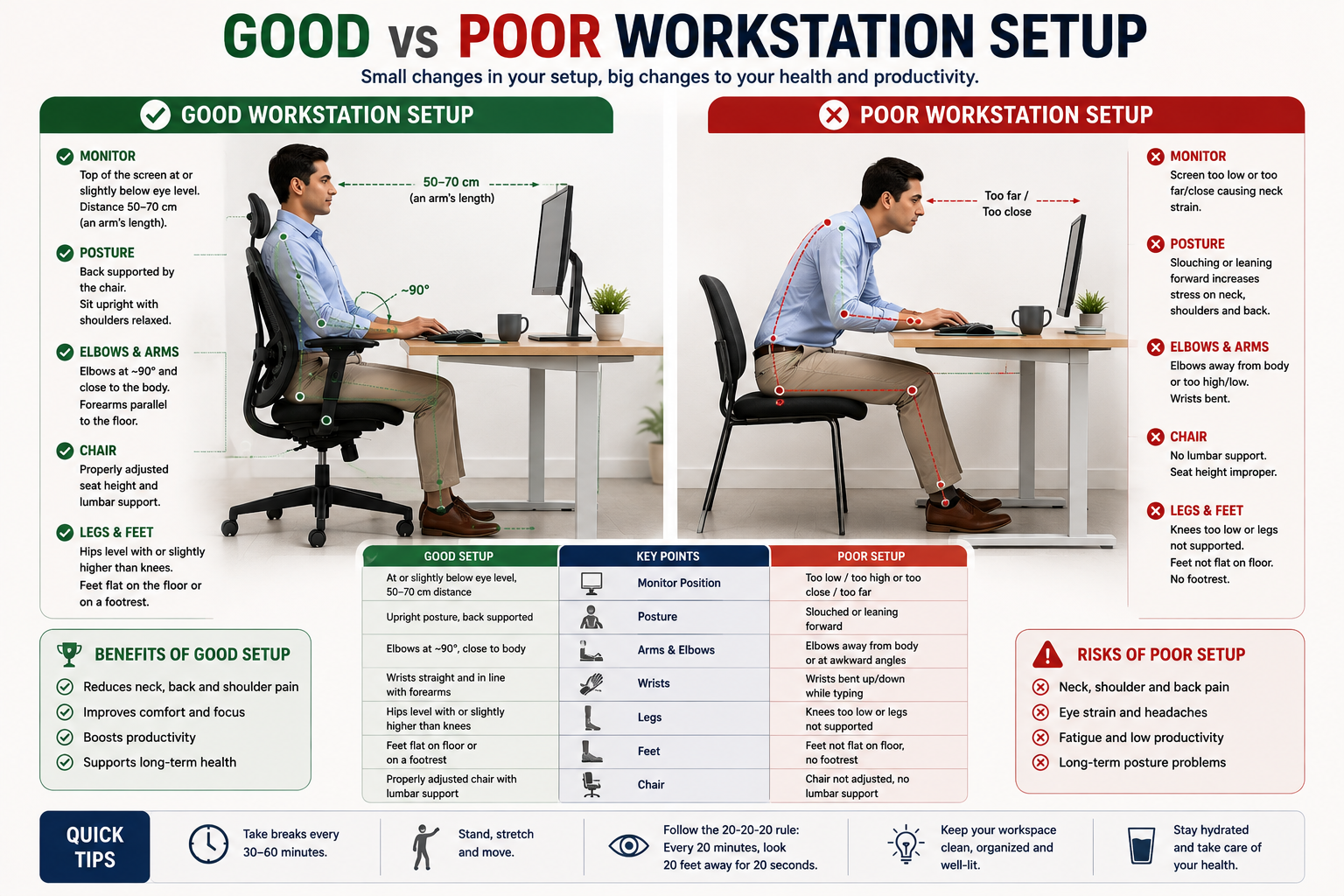
17. Are Your Frequently and Occasionally Used Items Organized Properly?
Your workstation can be divided into areas based on how frequently you use different objects.
Frequently Used Items
Keep items such as your phone, notebook, documents, or other regularly used tools within easy reach.
Occasionally Used Items
Less frequently used items can be placed farther away so that they do not occupy your primary working area.
Possible adjustment:
Reorganize your desk according to how often you use each item.
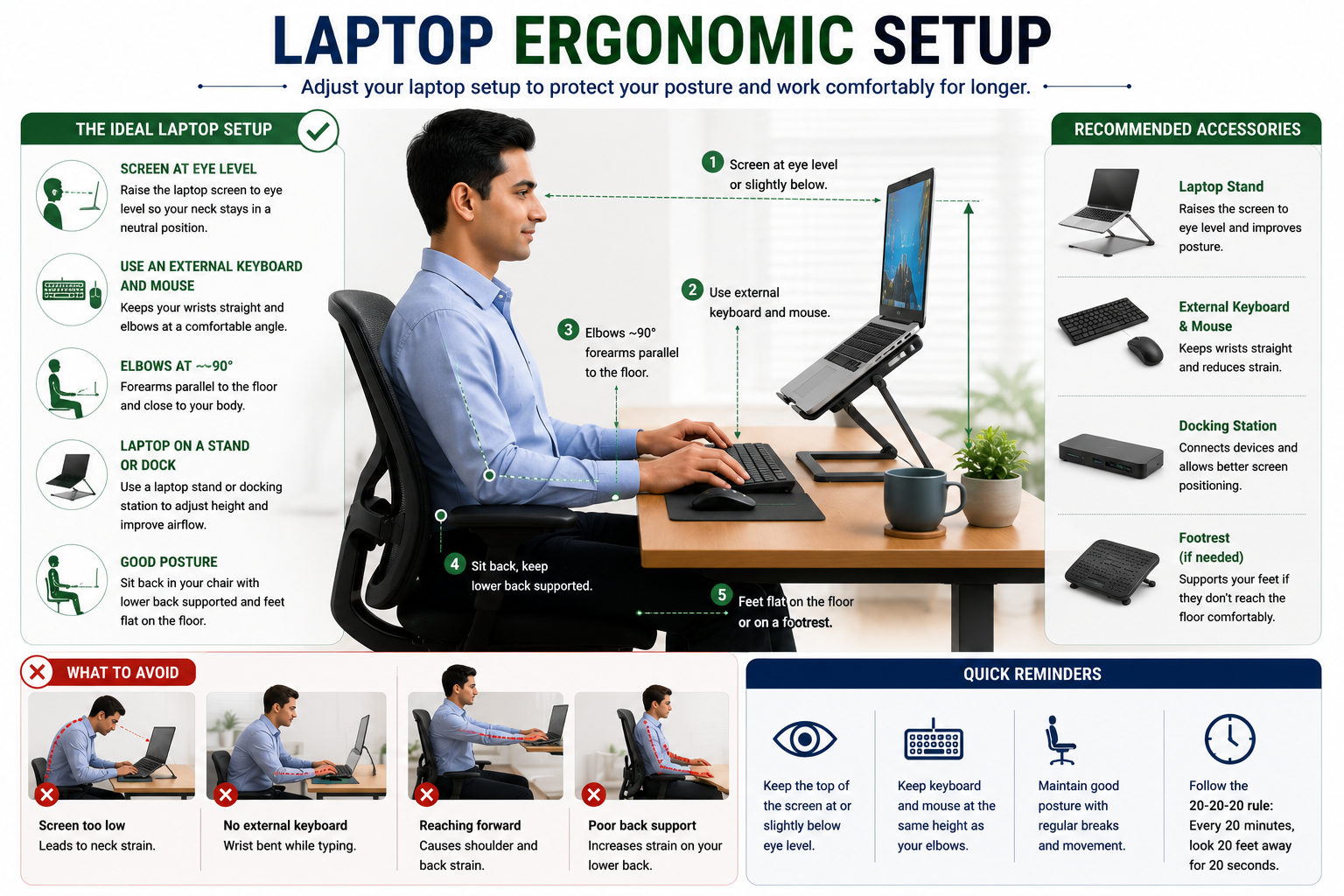
18. Is Your Laptop Setup Ergonomic?
Laptops are convenient, but using them for prolonged periods can create a compromise between screen height and keyboard position.
If you use a laptop for extended periods, consider using:
An external full-size keyboard
An external mouse
A laptop stand
A docking station
A separate monitor
This allows the screen and input devices to be positioned more appropriately for comfortable working.
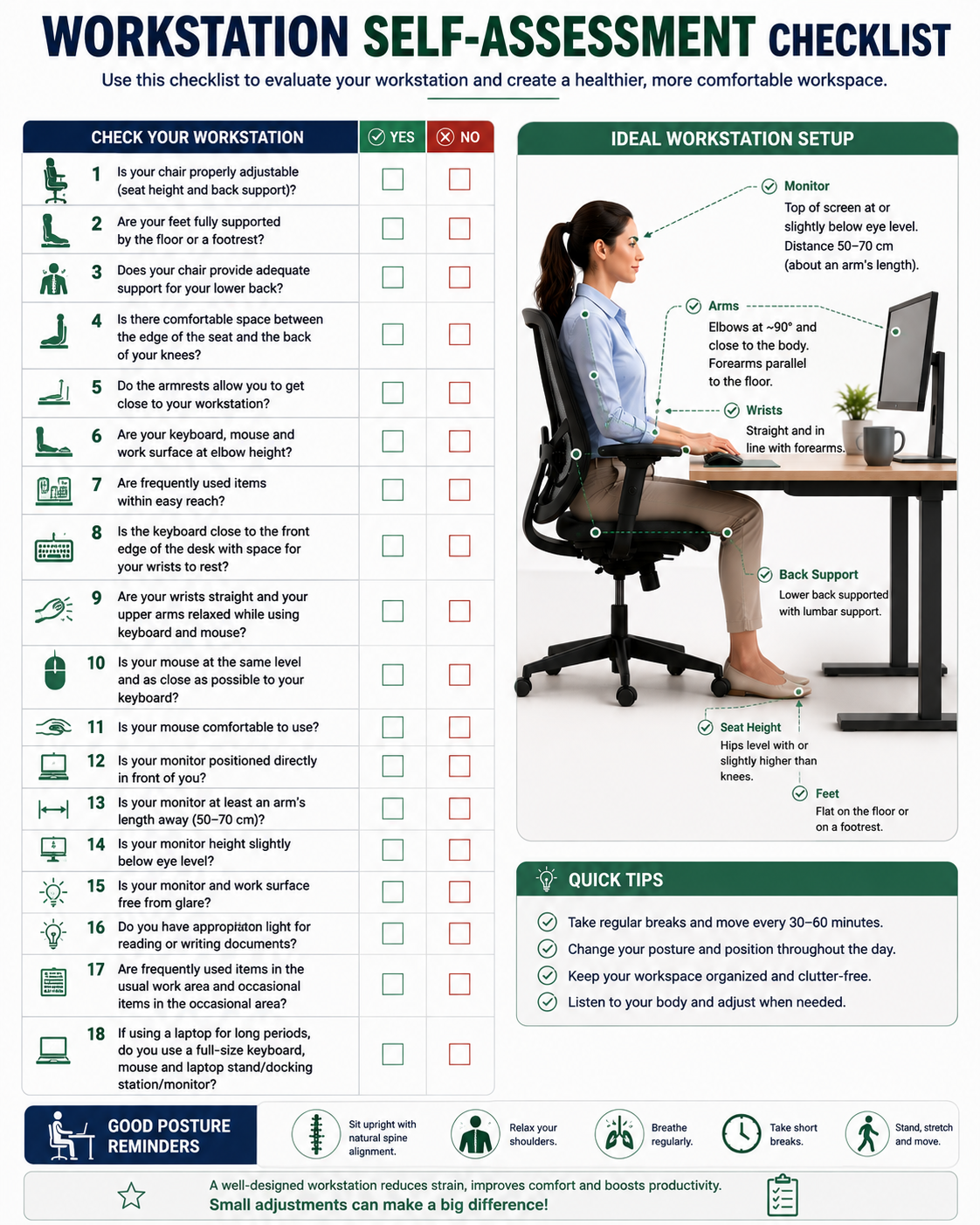
A Simple Ergonomic Workstation Checklist
Before starting your workday, ask yourself:
Chair
Is my chair height comfortable?
Is my lower back supported?
Are my feet supported?
Desk & Keyboard
Are my shoulders relaxed?
Are my elbows comfortable?
Are my wrists reasonably straight?
Mouse
Is it close to my keyboard?
Can I use it without reaching or gripping excessively?
Monitor
Is it directly in front of me?
Can I read the screen without leaning forward?
Is the height comfortable?
Is glare under control?
Work Area
Are frequently used items within easy reach?
Is the lighting adequate?
Do I have enough space to change position?
Laptop
Do I use an external keyboard and mouse for prolonged laptop work?
Is the screen positioned at a comfortable height?
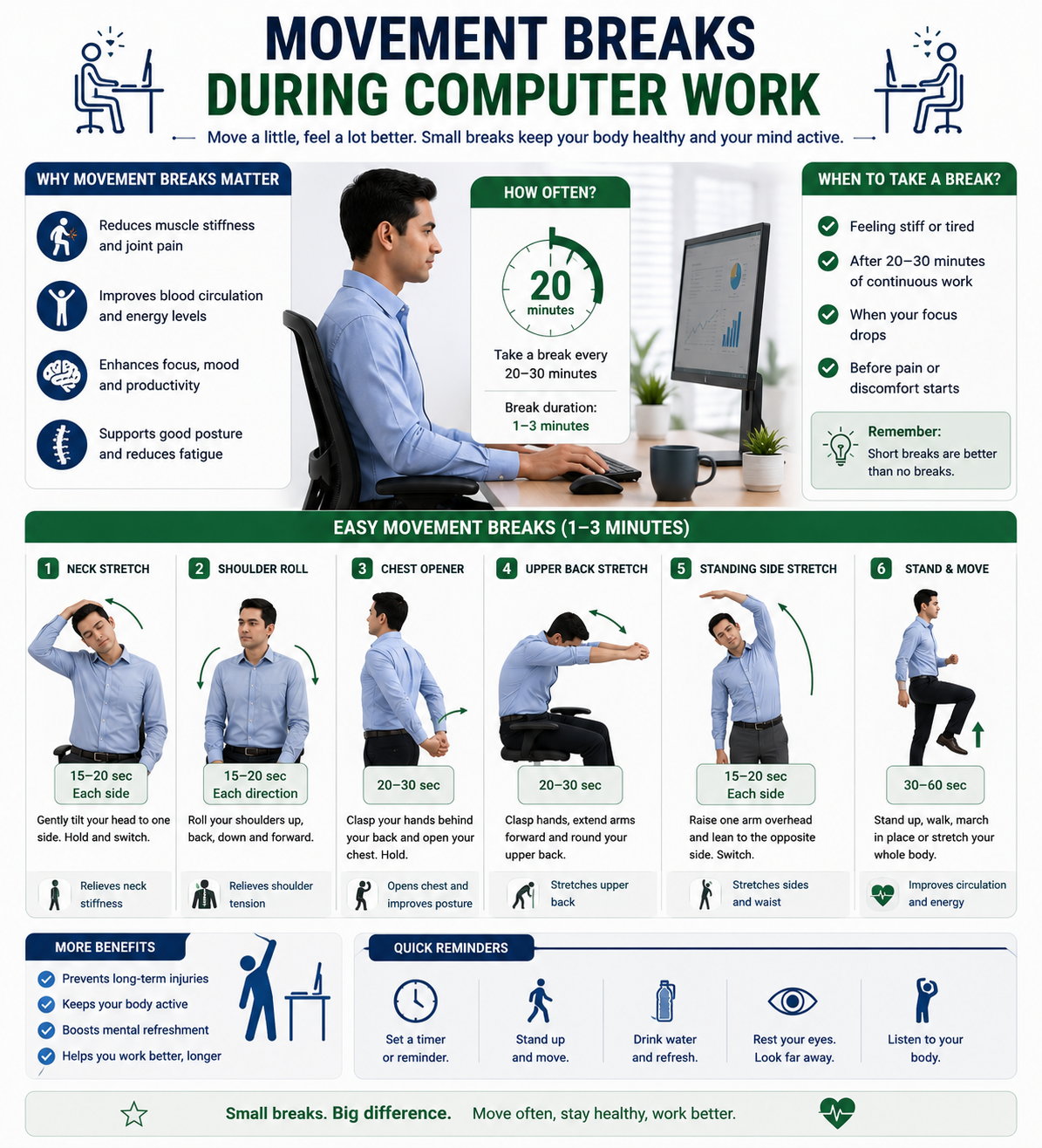
Remember to Move
Even a well-designed workstation does not eliminate the need for movement.
Try to avoid remaining in exactly the same position for prolonged periods. Change your posture, stand up, walk briefly, stretch, or perform simple movements throughout the working day.
The goal of ergonomics is not to find one perfect posture and remain there all day. Instead, it is to create a workstation that supports comfortable, varied, and efficient movement.
Conclusion
A good computer workstation should be adjusted to the person using it rather than forcing the person to adapt to an unsuitable setup.
Small changes to the chair, desk, monitor, keyboard, mouse, lighting, and laptop arrangement can make the working environment more comfortable and functional.
Regular movement, appropriate posture, and a workstation that fits your individual needs are important parts of maintaining comfort during computer-based work.
Frequently Asked Questions
Common therapeutic queries answered by Curevan's medical board.
Share this Article
Help your friends, family, or colleagues discover this guide.